
Full-motion video
START WITH THE BIG PICTURE
What does this part of Epok do?
Import and play full-screen video using PlayStation MDEC video and XA audio.
- 01Import and preview a clip
- 02Trigger it from gameplay
- 03Build with a supported CD data path
What is happening under the hood?
- Import converts the source to a console video stream.
- Playback pauses gameplay and can be skippable.
- CD streaming and platform-specific import requirements apply.
Field note: Read the current platform validation notes before relying on video import in a release workflow.
Epok plays full-screen video clips — intros, cutscenes, endings — the way PlayStation games did: the clip streams from the CD at double speed, its audio plays through the CD controller's XA decoder, and its frames are decompressed by the console's MDEC straight into the frame buffer. Gameplay pauses while a clip plays and continues afterwards.
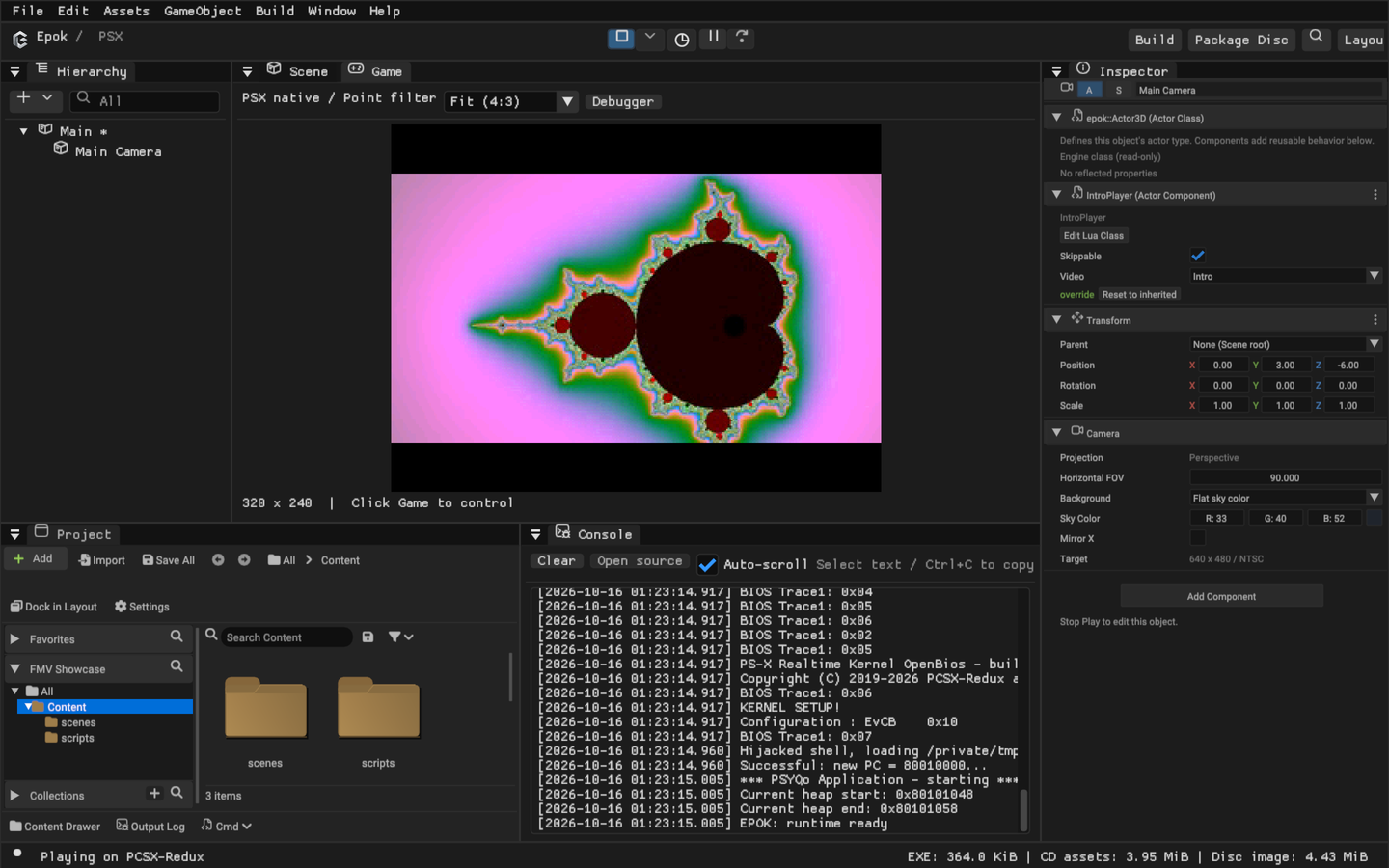
Play in the real editor: the scene's IntroPlayer Lua component started the clip from begin_play. The console switched to 320 x 240 for the 16:9 clip and letterboxed it.
Quick start
- Add the source. Drag an MP4, MOV, M4V, AVI, MKV, WebM, MPEG, WMV, OGV or GIF file onto the Content browser (or use Import). The file is copied into the open folder and appears in Imports.
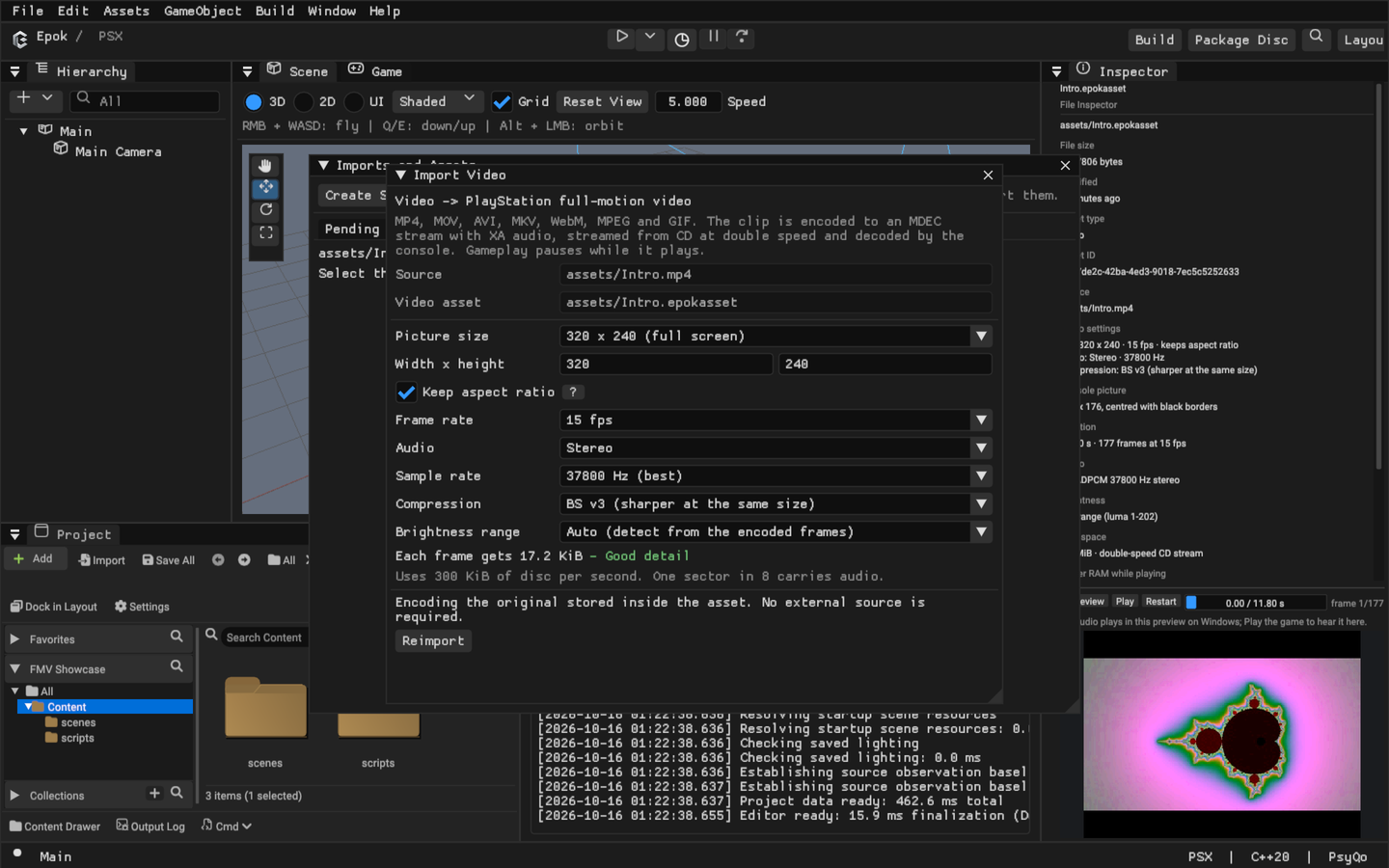
- Import it. The Import Video dialog opens with sensible defaults (320 x 240, 15 fps, stereo). Import encodes the clip for the console and decodes every frame once with the console's own decoder, so a clip that cannot play never becomes an asset.
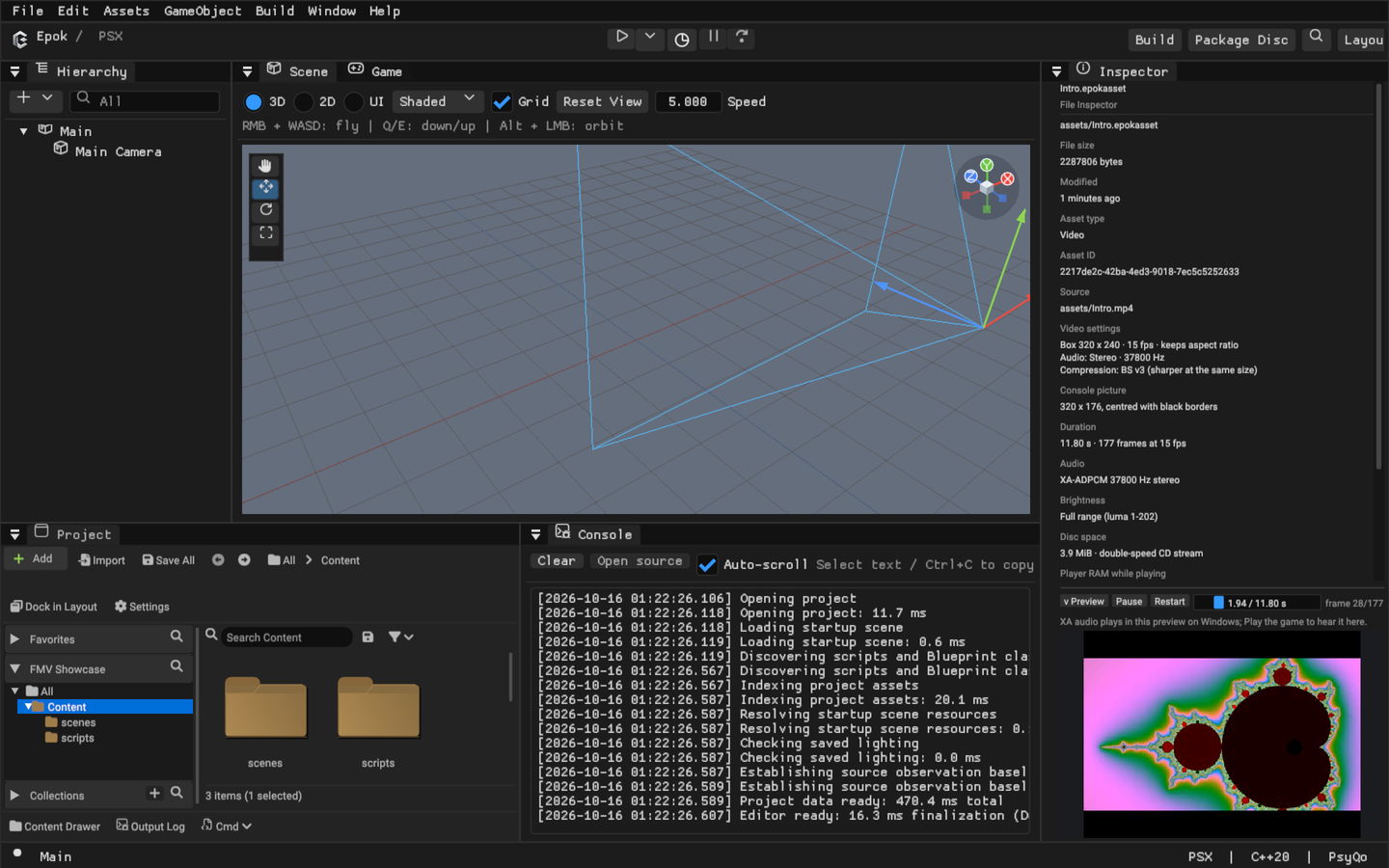
- Check it. Select the new asset. The File Inspector lists the console picture size, duration, audio, brightness range, disc space and the RAM the player reserves. Preview plays the clip exactly as the console decodes it, at its 15-bit colour depth, centred on a PlayStation screen.
- Play it from gameplay. Give a Blueprint or Lua class an
AssetRef<Video>property and call Play Video (see below). The Inspector shows a picker listing the project's videos for that property. - Use the CD. Set Play → Data to CD on demand and press Play. Videos stream from the disc image Epok builds next to the executable.
Playing a video
| Blueprint node (Video category) | Lua builtin | Result |
|---|---|---|
Play video (Video, Skippable) |
epok.play_video(self.<AssetRef<Video> property>, skippable) |
Started: true when the clip is queued |
| Stop video | epok.stop_video() |
— |
| Is video playing | epok.video_playing() |
true from the call that queued a clip until it has finished |
A Lua class that plays a clip when its actor starts:
---@class IntroPlayer : epok.ActorComponent
local IntroPlayer = epok.ActorComponent:extend()

-- The clip to show when the scene starts. Gameplay pauses while it plays.
IntroPlayer.video = epok.AssetRef("Video")
IntroPlayer.skippable = true

function IntroPlayer:begin_play()
    epok.play_video(self.video, self.skippable)
end

return IntroPlayer
Add the component to an actor and choose the clip in the Inspector's Video
picker. The same graph in a Blueprint is Event Begin Play → Play video, with
the clip chosen on the node's Video pin or from a Blueprint variable.
What happens when. Play video queues the clip and returns immediately; the rest of the event runs in the same tick. From the next frame the player owns the screen, the CD and the controller, and the game's simulation, rendering and timers stand still. When the clip ends, the game continues where it was and its clock skips the time the video took. So Play video → Request scene shows the clip first and loads the next scene after it.
Skipping. With Skippable set, START or ✕ ends the clip early.
The button press does not reach gameplay.
Background music stops while a video plays and restarts from its beginning afterwards, as it does when the CD is busy loading data.
Native C++ classes can call epok::bp::api::play_video(id, skippable),
stop_video() and video_playing() from blueprint_api.hpp; the id is the
value of an AssetRef<Video> property declared by a Blueprint or Lua class.
Only videos that such properties or node pins reference are put on the disc.
Import settings
| Setting | Default | Meaning |
|---|---|---|
| Picture size | 320 x 240 | The box the picture is fitted into, in steps of 16 pixels, up to 320 x 240. Smaller pictures leave more data for each pixel. |
| Keep aspect ratio | On | The picture keeps its proportions inside the box and the console shows it with black borders. Off stretches it to fill the box. |
| Frame rate | 15 fps | 5 to 30 frames per second. The CD delivers a fixed amount of data each second, so more frames means less detail in each. |
| Audio | Stereo | Stereo, Mono or No audio. Without audio every sector carries video. |
| Sample rate | 37800 Hz | 18900 Hz halves the audio's share of the stream. |
| Compression | BS v3 | BS v3 codes brightness differences more compactly than BS v2 and is sharper at the same size. Both play. |
| Brightness range | Auto | See Brightness range. |
The dialog shows the data each frame gets at double speed and grades it. At the defaults a frame gets 17.2 KiB:
| Audio | 10 fps | 15 fps | 24 fps | 30 fps |
|---|---|---|---|---|
| Stereo 37800 Hz (one sector in 8) | 25.8 KiB | 17.2 KiB | 10.8 KiB | 8.6 KiB |
| Mono 37800 Hz or stereo 18900 Hz (one in 16) | 27.7 KiB | 18.5 KiB | 11.5 KiB | 9.2 KiB |
| No audio | 29.5 KiB | 19.7 KiB | 12.3 KiB | 9.8 KiB |
Encoding uses the pinned psxavenc. Epok reads the picture size from the container (MP4/MOV, MKV/WebM, AVI, MPEG, Ogg Theora, GIF) and asks the encoder for the exact letterboxed size; when the container does not say, the picture is stretched to the box and the Inspector shows no source size. psxavenc keeps all but the last frame or two of a clip.
From the command line (project-relative paths; settings are the same fields as the dialog, in JSON):
epok-editor --project "My Game" --import-video assets/Intro.mp4
epok-editor --project "My Game" --import-video assets/Intro.mp4 --asset assets/Video/Intro.epokasset --video-settings '{"frame_rate":12,"audio":"mono","levels":"tv"}'
epok-editor --project "My Game" --reimport-asset assets/Video/Intro.epokasset --snapshot --video-settings '{"width":256,"height":192}'
--import-video prints the asset's UUID and the encode report: picture size,
frames, sectors, audio format, brightness levels and disc bytes.
Edit video import settings in the File Inspector re-encodes the stored
source with new settings and keeps the asset's identity, so references remain
valid. The asset stores the original file; the encoded stream is a cache under
.epok/imported/ that Build recreates when needed.
Brightness range
Most camera and web video stores black at 16 and white at 235 rather than 0 and 255. When the encoder passes such levels through unchanged (it does for a source that already has the target size), the console would show grey blacks. Auto measures the encoded frames and, when their darkest and brightest pixels sit at those levels, marks the clip TV range. The player then expands it to the full range at no runtime cost: AC steps grow in the MDEC's luma and chroma quantisation tables and the decoder maps each block's DC value. Choose TV range or Full range to override the detection. The Inspector reports the measured levels.
On the console
- Stream. Each referenced clip becomes
V#######.STRon the disc: Mode 2 sectors that interleave BS video frames (Form 1) with XA-ADPCM audio (Form 2), ending with a marker sector. 300 KiB of disc per second. - Playback. The CD reads at double speed with XA audio routed to the SPU and only the clip's channel selected. Video sectors are assembled into frames in the CD interrupt. The CPU expands a frame's bitstream into MDEC codes, and the MDEC decodes it one 16-pixel column at a time; each column is uploaded to the frame buffer. Frames appear as soon as they have arrived, so picture and sound stay in step with the disc.
- Display. The player switches to a 320 x 240 mode (256 x 240 on 256-wide displays), keeps the interlace setting of 480-line displays so frame pacing is unchanged, centres the picture on black, and restores the game's mode at the end.
- Memory. A project that plays videos reserves one static buffer sized for its largest clip: two frames of assembly, the decoded codes and two pixel columns — typically 80 to 120 KiB at the defaults, more for detailed clips. The Inspector shows each clip's figure and the memory analysis counts the reserve. Projects without videos reserve nothing.
- Statistics.
epok::video_statsreports the state, frames shown and dropped, sectors read, decode time in scanlines and the last error.
error_code |
Meaning |
|---|---|
| 1 | The CD drive did not initialise. |
| 2 | The stream file is not on the disc. |
| 3 | A CD command failed. |
| 4 | A sector of the wrong size or format arrived. |
| 5 | A frame failed to decode (failed_frame and failed_status name it). |
| 6 | The MDEC stopped responding. |
| 7 | No data arrived for three seconds. |
Play data sources
Videos need the disc. CD on demand builds and mounts it. In executable
and PC on demand stop the build with a message naming the videos, because
their audio requires the CD controller. Serial builds keep the clip table but
put nothing on a disc; Play video then returns false and the game carries on.
Limits
- One clip at a time, full screen only: there are no video textures on 3D or 2D surfaces, no looping and no seeking.
- Pictures are at most 320 x 240 and shown in 15-bit colour.
- The CPU expands every frame's bitstream, so very detailed clips take longer.
The Inspector estimates the console's decode time for the most detailed frame
and warns when it approaches the time between frames; a frame that is not
ready in time is skipped (
frames_dropped). A dense 320 x 176 clip at 15 fps measures about 63 ms of the 67 ms available in PCSX-Redux. - Streams are encoded for double-speed CD.
- The Inspector preview plays audio on Windows; elsewhere it is silent and the game's Play has sound.
Testing
tests/integration/verify_fmv.py creates a project with an original test clip,
plays it from a Lua class, builds the disc and runs it in PCSX-Redux. It checks
that every frame is shown in real time without errors, that the picture and its
borders have the expected colours vsync by vsync, that the game's display mode
returns and that START skips the clip. Run it with
--display 640x480 (the default) or --display 320x240.