
2D worlds
START WITH THE BIG PICTURE
What does this part of Epok do?
Build 2D worlds with sprites, tile maps, cameras, collision, animation and gameplay alongside a 3D world or UI.
- 01Create a 2D node or Platformer template
- 02Author sprites, tiles and gameplay
- 03Build and check the console output
What is happening under the hood?
- World2D uses pixel units with Y pointing down.
- TileSet and TileMap tools support authored 2D environments.
- Under 3D canvases and Depth2D masks can combine 2D backgrounds with a 3D scene.
Field note: Check the target output when mixing 2D and 3D, because the PSX sorts whole triangles.
A map can hold a 2D world beside, or instead of, its 3D world. 2D content is made of
2D nodes: Actor2D actors whose root is a 2D transform, carrying engine
components such as Sprite2D, TileMapLayer, Collider2D, CharacterBody2D, Camera2D,
Parallax2D, Path2D, Line2D, Polygon2D and Particles2D, plus any C++, Blueprint or Lua
component of your own. On the PlayStation
the 2D world is drawn after the 3D world and before the HUD, except canvases placed
under the 3D world and nodes a Depth2D places inside it (see
2D and the 3D world).
Units are pixels with Y pointing down, exactly like the screen and a texture: at zoom 1 a 16 x 16 sprite covers 16 x 16 screen pixels, and positions, collider sizes, velocities (pixels per second) and camera limits all use the same unit. Rotations are degrees; a positive rotation turns clockwise on screen.
Start here
- New Project > Platformer 2D creates a playable side-scroller at 320 x 240: an animated player that runs, jumps and pushes a crate, a following camera with level limits, a tile map painted from a TileSet, a lift that carries the player, and a layered, living world around it (see The Platformer 2D template). Its gameplay is written in the language you choose (C++, Blueprint or Lua); every flavor behaves identically.
- In any project, switch the Scene window to 2D and use Add 2D Node, the 2D Object submenu of the Hierarchy's creation menu or the empty-view buttons. Dragging an imported texture from the Project panel into the 2D view creates a Sprite2D at the drop point.
The Platformer 2D template
The template is a starting point: every part is an ordinary node. One logical
World2D root organizes the world; attached structures retain their own branches.
The scene uses 52 actors, leaving 12 slots for a complete dialogue widget within
the 64-actor level limit. A dialogue can use the existing Guide as its speaker.
| Area | Content |
|---|---|
| Scenery | SkyLayer: a gradient stretched over the screen and an additive sun, on a canvas behind everything. Hills with the polygon Mountains (half the camera's speed), drifting Clouds, a Treeline (0.7) and dark Foreground bushes scrolling faster than the camera, in front of everything |
| Level | Ground (solid and one-way tiles, crates) and Details (decoration) tile layers, a Lift riding LiftPath, a Vine (Line2D) and WispPaths, the navigation grid over the ground |
| Characters | the Player (Character2D with shared motor, project input and sprite driver), its attached Player Camera, the Guide (a Skeleton2D cut-out whose IK arm points at the player) and the Wisp (a NavigationAgent2D that follows the player round the tiles) |
| Props | a PushCrate (RigidBody2D the player pushes) and a Garland of light bulbs on rope joints with its cord drawn by a Line2D |
| Coins | spinning coins whose project-owned CoinPickup callback hides them when the bound player enters |
| Effects | Fireflies over the meadow and falling Petals on a screen canvas of their own |
| HUD | a coin icon on a screen canvas, and a line of help (HelpCanvas / ControlsHint) at the top |
The artwork is generated pixel art in assets/Sprites: replace a PNG with your own and
the sprites using it follow (keep the sheet layout of Player.png and Tiles.png, or
re-slice them). The level is painted with the TileSet in assets/TileSets: select
Ground to paint, or open Edit TileSet to change tiles, collision and terrains.
The player uses seven component slots: root, collider, body, motor, sprite, project
input and SpriteLocomotion2DComponent. Its following Camera2D lives on a separate
attached Actor2D with two slots, leaving one player slot for an interaction or
another project capability. References use persistent object identity.
The C++, Blueprint and Lua controllers extend LocalPlayer2DInputComponent.
Tune max_speed on input (96 pixels/s), gravity/jump speed on the motor
(720 pixels/s² / 264 pixels/s), and clips/facing on the sprite driver. Override
calculate_command for project movement rules; coin rules remain in the selected
language. See the shared character contracts.
CoinPickup derives from PickupComponent in each language. The scene binds
accepted_initiator to the player and enables auto_collect. The inherited
helper validates the initiator and commits collection once; the editable
collected(initiator, port) callback hides the owner. Add rewards there. To
respawn a collected coin, reactivate its owner and call reset_collection() on
the pickup; reactivation alone does not award it again. The starter does not
automatically respawn coins during a run.
The shared-component route passes all five execution cases with identical
motion, sprite selection and coin results. Its C++ probe uses 1,693,000 static
RAM bytes including observation components. Lua VM source uses 1,948,800 bytes
after sizing value scratch storage to the program's types, leaving 148,352 bytes
free. All three flavor exports rebuild byte-identically. Scoped evidence:
artifacts/gameplay-helpers/p5/platformer-validation.json. Actual game budgets come from
each project's build report; one-way/lift traversal and visual acceptance remain
separate route checks.
The 2D view
The Scene window's 2D mode is a pixel-accurate editor. When a map opens it frames what the game camera will show. Sprites draw with their real textures, animations and flips, colliders draw exactly as the console resolves them, and the current camera's view is filled with its background colour.
| Tool | Key | What it does |
|---|---|---|
| Select | Q | Click to select (topmost first), drag to move. The selection box has scale handles on its corners and edges, a rotation knob above it, and collider resize handles. |
| Move | W | Drag anywhere to move the selection. |
| Rotate | E | Drag around the pivot to rotate. Shift snaps to the rotation step. |
| Scale | S | Drag to scale from the pivot. Shift keeps the ratio. |
| Pan | Space (hold) | Drag to pan. Middle or right drag pans with any tool. |
| Action | Input |
|---|---|
| Zoom at the cursor | Mouse wheel, or the zoom buttons and presets in the toolbar |
| Frame the selection, or the whole map | F, or the frame button |
| Toggle snapping | G, or the magnet button; its arrow sets the grid and rotation steps. Hold Alt while dragging to ignore snapping |
| Nudge the selection | Arrow keys: 1 pixel, or one grid step with Shift |
| Duplicate / delete | Ctrl+D (Cmd+D) / Delete |
| Context menu | Right click: add a 2D node at the cursor, duplicate, delete, frame |
| Deselect | Escape |
The toolbar also toggles the grid, the pixel rulers, collision shapes, camera bounds and animation previews. The status bar shows the cursor position in world pixels, the zoom and the selection. Every edit is one Undo step, a whole drag included.
2D nodes
| Node | Components | Use it for |
|---|---|---|
| Node2D | none | Grouping, positioning other nodes, script-only logic |
| Sprite2D | Sprite2D | A texture, a region of an atlas or one cell of a sprite sheet |
| AnimatedSprite2D | Sprite2D | Named frame animations |
| TileMapLayer | TileMapLayer | Levels painted from a TileSet, with tile collision |
| Camera2D | Camera2D | The view the game shows |
| CharacterBody2D | Sprite2D, Collider2D, CharacterBody2D | A player or enemy moved by script |
| StaticBody2D | Collider2D | Floors, walls, platforms |
| Area2D | Collider2D (trigger) | Pickups, damage zones, checkpoints |
| Parallax2D | Parallax2D | Backgrounds that scroll slower than the camera and repeat |
| Path2D | Path2D | Curves to move things along: patrols, rails, moving platforms |
| PathFollow2D | PathFollow2D | A node that travels along a Path2D and carries bodies standing on it |
| Line2D | Line2D | Ropes, vines, lasers, trails, outlines |
| Polygon2D | Polygon2D | Filled or textured shapes: distant scenery, shadows, terrain |
| Particles2D | Particles2D | Sparks, smoke, dust, rain, fireflies |
| PointLight2D | Sprite2D (additive) | Soft glows: lamps, torches, magic |
| CanvasLayer2D | CanvasLayer2D | HUD sprites and fixed layers drawn in screen pixels, or backgrounds under the 3D world |
| CanvasModulate2D | CanvasModulate2D | Tinting a whole canvas: night, flashes, fades |
| Depth2D | Depth2D | Masks over a pre-rendered background: attached sprites and tile layers at a depth in the 3D world |
| AudioPlayer2D | AudioPlayer2D | Sounds that fade and pan with the camera |
| VisibleOnScreenNotifier2D | VisibleOnScreenNotifier2D | Knowing when a node enters or leaves the view; pausing it off screen |
| RemoteTransform2D | RemoteTransform2D | Making one node follow another without attaching it |
| Skeleton2D | Skeleton2D | Cut-out characters: parts animated as bones, with IK arms and legs |
| NavigationRegion2D | NavigationRegion2D | Where agents can walk: a grid from tiles and static bodies, or a navmesh |
| NavigationAgent2D | NavigationAgent2D | Enemies, NPCs and companions that find their way to a target |
| RigidBody2D | Sprite2D, Collider2D, RigidBody2D | Crates to push, balls, falling rocks, anything that bounces |
| Joint2D | Joint2D | Pendulums, ropes, chains, springs: a rigid body tied to a point or another body |
| SubViewport2D | SubViewport2D | A camera's view as a picture a sprite shows: minimaps, monitors, picture-in-picture |
| SplitScreen2D | SplitScreen2D | Two cameras on one screen, side by side or stacked: local multiplayer |
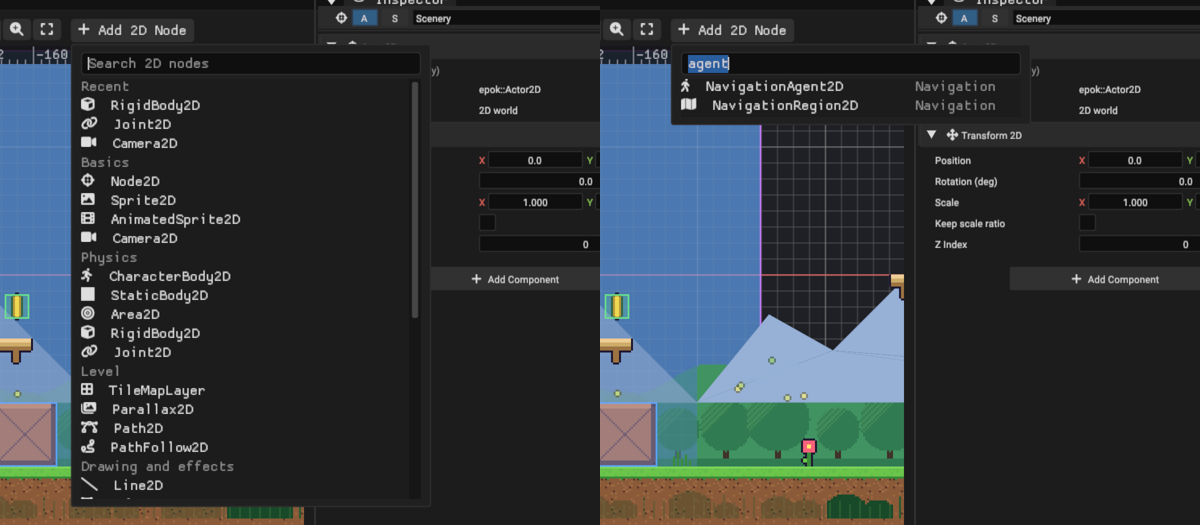
The Add 2D Node menus group these by purpose: Basics, Physics, Level, Drawing and effects, Animation, Navigation, Canvas and views, and Audio and helpers. The toolbar's Add 2D Node opens with the cursor in a search field and the project's Recent nodes on top, so Enter repeats the last one. Type part of a name, a group or a purpose ("rope", "minimap", "enemy", "physics") and the list narrows as you type, best match first — names before groups before descriptions — with each result's group on the right; Enter creates the first at the view's centre. Hovering a node explains what it is for.
Warnings and one-click fixes
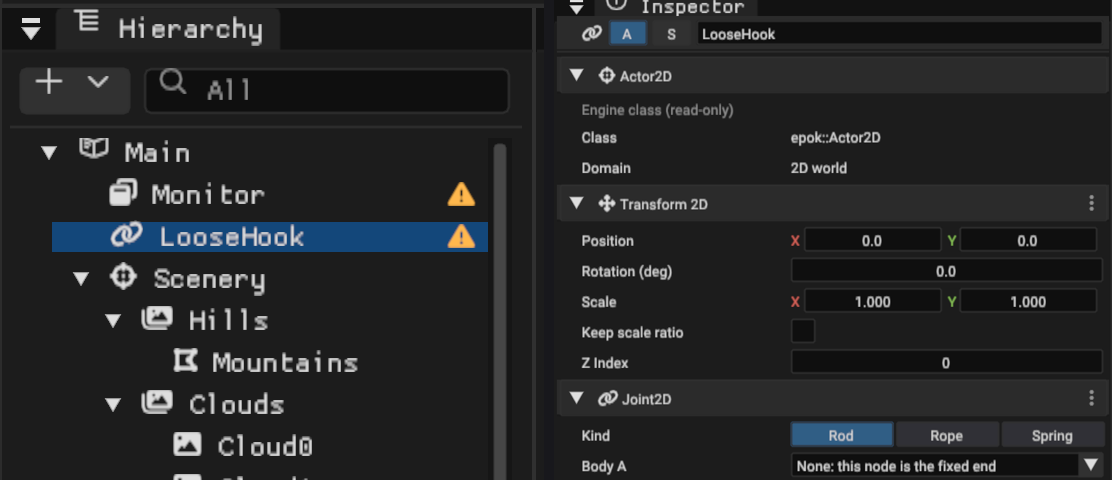
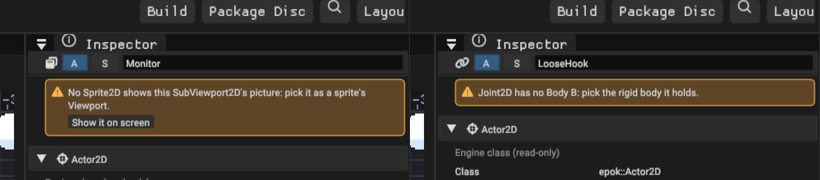
A node that cannot do its job as set up shows an amber warning sign at the end of its Hierarchy row; hovering the sign lists the reasons. Selecting it shows the same reasons in an amber box at the top of its Inspector, with a button where the fix is obvious. The sign disappears once the node is fixed, and a new project from a template opens without any.
| Node | Warns when | Fix button |
|---|---|---|
| RigidBody2D, CharacterBody2D | It has no enabled, non-trigger Collider2D (a body hanging on a Joint2D may go without) | Add a Collider2D, fitted to the node's sprite |
| Joint2D | It has no Body B, or Body B has no RigidBody2D | — |
| SubViewport2D | No Sprite2D shows its picture | Show it on screen: a Sprite2D in the top-right corner of the HUD canvas (or at the node, without one) |
| SubViewport2D | Its Camera node has no Camera2D | — |
| SplitScreen2D | One of its two cameras is missing or has no Camera2D | — |
| NavigationAgent2D | The map has no NavigationRegion2D | Add a NavigationRegion2D: a grid over the solid tile layer with the most tiles |
| NavigationRegion2D | Its navmesh has fewer than three points, or its Tile layer node has no TileMapLayer | — |
| Skeleton2D | It has no bones, an IK chain lacks its tip or target, or a bone's node was deleted | — |
| PathFollow2D | It neither names a Path2D nor is attached to one | — |
A fix is one undo step and keeps the fixed node selected.
Adding components and picking nodes
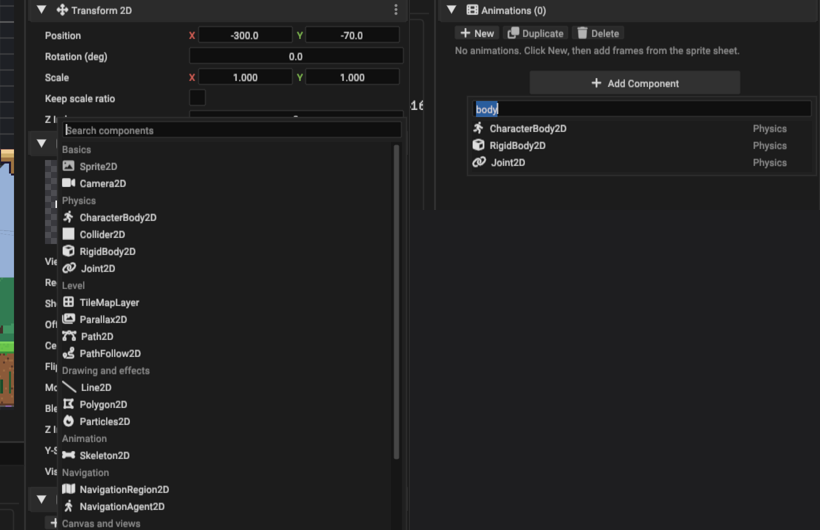
Add Component at the bottom of a 2D node's Inspector lists every 2D component in the same groups as Add 2D Node, with the same search: a sprite becomes a falling crate with Add Component, "rigid", Enter, then Add a Collider2D from its warning. Components a node already has, and allows once, are greyed out. Scripts and shared components follow the 2D ones.
Fields that pick a node (a joint's bodies, an agent's target, a picture's camera) or a texture list only what fits; with more than eight choices the list opens with a search field focused, so typing "player" and Enter picks the Player.
Nodes are ordinary actors: add or remove components in the Inspector, parent them for grouping in the Hierarchy, convert them to Blueprint classes and spawn them at runtime.
Sprite2D
- Texture and Region: pick an imported texture (or drop one on the preview). Region... opens a zoomable editor where you drag the rectangle to draw, snapped to pixels or to 4-32 pixel steps. Zero width/height uses the rest of the texture.
- Sheet columns/rows and Frame show one cell of a uniform sprite sheet.
- Offset, Centered, Flip H/V, Modulate (multiplies the texels; 255 is unchanged), Blend (opaque, 50% average, add, subtract, 25% add — the console's semi-transparency modes), Z Index, Y-Sort and Visible.
- Animations: named clips with a speed in frames per second, looping, a default animation and Autoplay. Add Frames from Sheet... cuts the texture into a grid (columns, rows, offset, separation); click cells in the order they should play. Each frame has a relative duration and an optional event id.
Draw order is: the owner's Z Index plus the sprite's Z Index, then, for Y-sorted sprites, their world Y (lower on screen draws in front), then creation order.
Collider2D
A Rectangle (size) or Circle (radius) with an Offset, in one of three modes:
- Solid blocks CharacterBody2D motion.
- Trigger reports overlaps: the actor's Overlap 2D event and every component's Trigger Event receive the other actor with Enter, Stay or Exit.
- One-way is a platform that only stops bodies falling onto its top edge; a body jumping from below passes through. One-way margin lets a body that sank a few pixels still land.
Layer and Mask are 32-bit grids: two colliders interact when each one's layer is in the other's mask. Shapes follow the owner's position and scale; boxes stay axis-aligned when the node rotates. Fit to Sprite sizes the shape to the sprite.
CharacterBody2D
Set the velocity in pixels per second and call move_and_slide() from tick. The body moves through its actor's first solid Collider2D, slides along what it hits, zeroes the velocity component pushing into an obstacle and updates is_on_floor, is_on_wall and is_on_ceiling against Up direction (screen up by default) and Floor max angle. Floor snap length keeps a grounded body on the floor when it walks off a small step. Floating mode (top-down games) treats every contact as a wall. move_and_collide(dx, dy) moves by an explicit displacement and stops.
Camera2D
The current camera follows its actor. Per simulation step it applies Drag margins (a dead zone the target can move in), Limits (the view never shows outside them; Fit Limits to Scene measures the map), Smoothing and then Offset and shake. Zoom magnifies, Background is the colour the game clears to when no 3D camera paints one, and Rotate with node turns the view with its actor. Gameplay can call make_current, set_zoom, set_limits and shake(amplitude, seconds).
Tile maps
A TileSet is an asset that cuts one texture into a grid of tiles and stores what each tile is: its collision, whether it is a one-way platform, its animation, its terrain and any custom data. A TileMapLayer paints cells with the tiles of one TileSet. Several layers can share a TileSet: a solid layer for the level and a decoration layer without collision in front of or behind it, for instance.
Creating a TileSet
- Import the PNG that holds your tiles, laid out on a grid.
- Add a TileMapLayer node (Add 2D Node, the Hierarchy or the right-click menu).
- In the palette under the 2D view, or in the Inspector, choose New TileSet from a texture..., pick the texture and the tile size (8, 16, 24 or 32 pixels, or any size). A tile is created for every cell that has visible pixels, and the TileSet editor opens.
Content Browser > Create > TileSet makes an empty TileSet whose texture you choose in the editor, and Use an existing TileSet assigns one the project already has. 16 x 16 tiles are the cheapest on the console (see below).
The TileSet editor
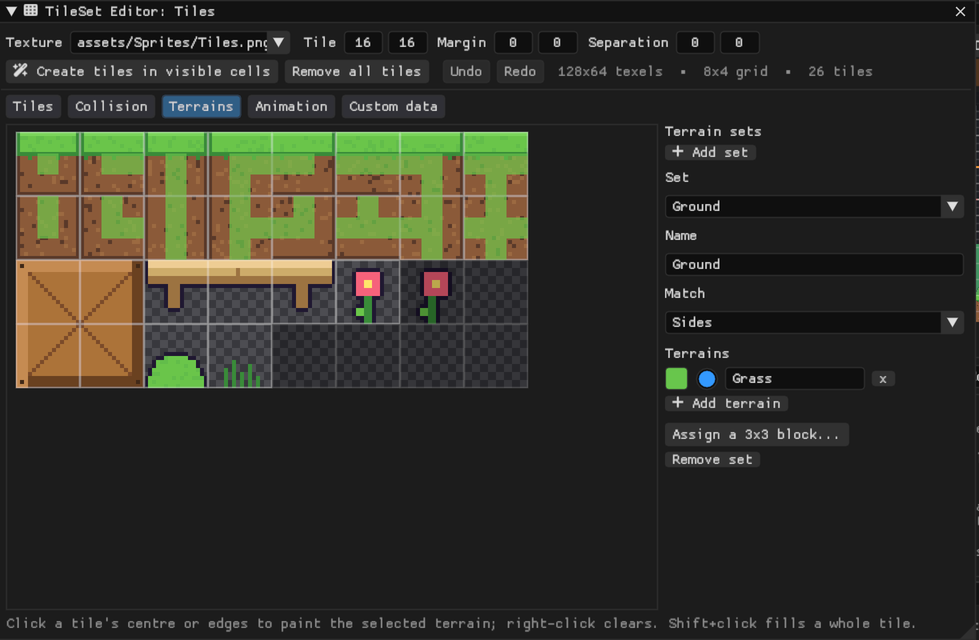
Double-click a TileSet in the Content Browser, or press Edit TileSet in the palette or the Inspector. The top bar sets the texture, tile size, margin and separation and can create tiles for every cell with visible pixels. The atlas zooms with the mouse wheel; every edit is saved at once and can be undone inside the window (Ctrl+Z, Ctrl+Shift+Z). Maps that use the TileSet update immediately.
| Mode | What you do |
|---|---|
| Tiles | Click a tile to select it (Shift adds), click an empty cell to create a tile there, right-click a tile to remove it. The panel edits the selected tile: collision, one-way, probability and custom values. |
| Collision | Pick Full, a half (top, bottom, left, right) or None and click or drag across tiles; tick One-way for jump-through platforms. Right-click clears. A tile's shape can also be any rectangle. |
| Terrains | Add a terrain set and its terrains, then paint each tile's peering bits: the centre of a tile is its own terrain, its edges and corners the terrain it connects to. Shift+click fills a whole tile, right-click clears a zone. Assign a 3x3 block sets up a block laid out as an area's corners, edges and centre in one click. |
| Animation | Select a tile and set its frames (laid out to the right of it in the atlas, optionally wrapping after a number of frames per row) and speed. A live preview plays. |
| Custom data | Add integer or boolean layers (damage, friction, a footstep sound) and paint values onto tiles. Gameplay reads them with get_cell_custom_data. |
Terrain sets match Corners and sides (47-tile blob layouts), Sides (16 tiles) or Corners (16 tiles). When a neighbourhood has no exact tile the closest one is used, so an incomplete set still paints.
Painting
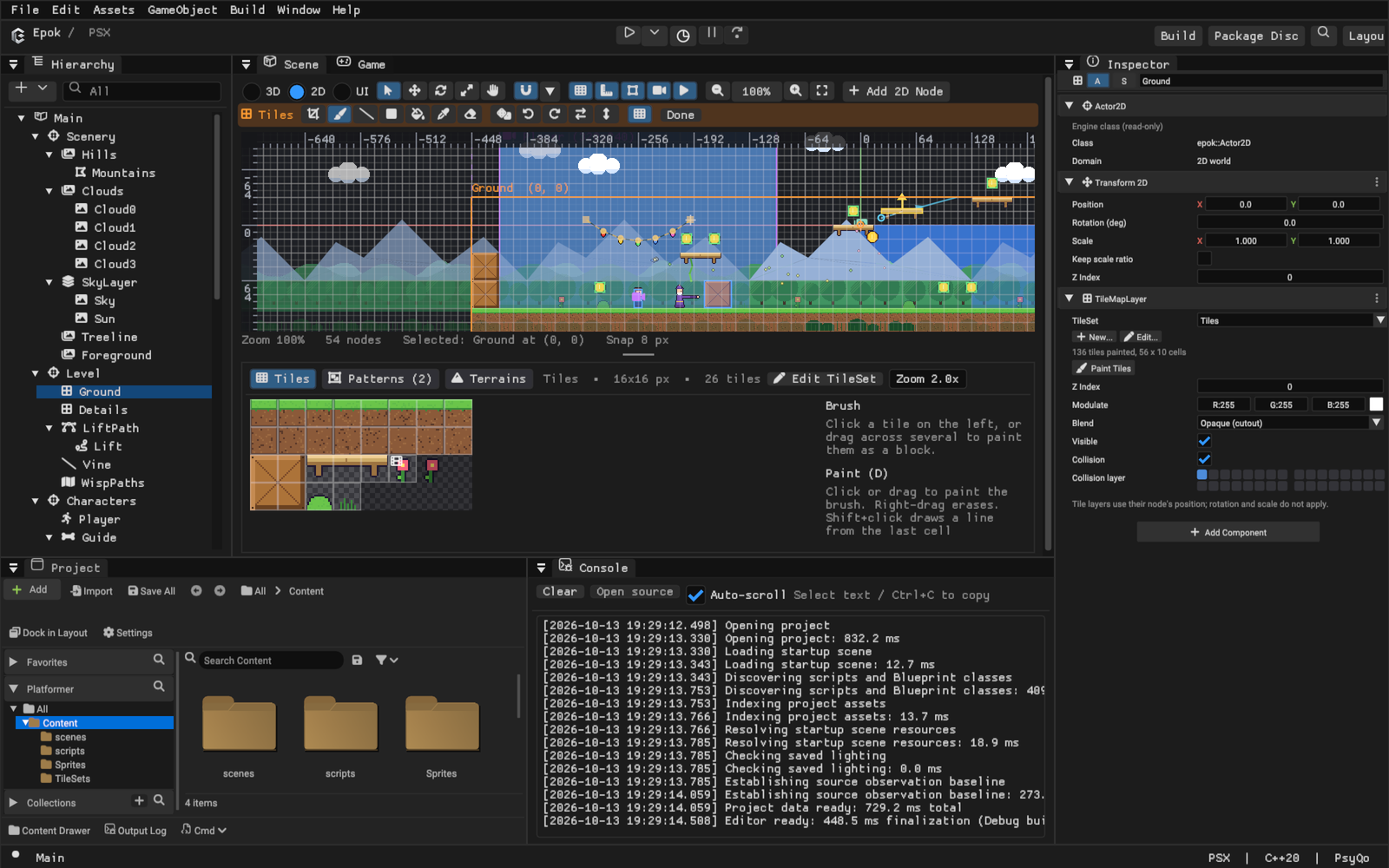
Select a TileMapLayer: the tile tools appear under the 2D toolbar and the palette opens under the view (drag the bar above it to resize). The layer being painted is drawn at full strength and other tile layers are dimmed.
| Tool | Key | What it does |
|---|---|---|
| Select cells | S | Drag a rectangle of cells. Ctrl+C copies it to the brush, Delete erases it, and the Patterns tab saves it as a pattern |
| Paint | D | Click or drag to paint the brush. Shift+click draws a line from the last painted cell |
| Line | L | Drag a straight line |
| Rectangle | R | Drag a filled rectangle; a multi-tile brush repeats across it |
| Bucket fill | B | Fill the connected area of the same tile; untick Contiguous to replace every matching cell |
| Pick tile | P | Click a painted cell to load its tile (and flips) into the brush |
| Eraser | E | Click or drag to erase |
| Action | Input |
|---|---|
| Erase with the current tool's shape | Right-drag |
| Random scatter: one random tile of the brush per cell, weighted by tile probability | G, or the dice button |
| Rotate the brush left / right | Z / X |
| Flip the brush horizontally / vertically | C / V |
| Pan | Middle drag, or Space and drag |
| Stop painting and move nodes again | Q, Esc or Done |
The palette has three tabs:
- Tiles: click a tile, or drag across several to paint them as a block. Ctrl+wheel zooms; hovering a tile tells you what it is.
- Patterns: reusable blocks of tiles saved with the TileSet (a tree, a house, a platform). Click one to paint it; right-click to rename or delete.
- Terrains: pick a terrain and paint, draw lines or rectangles or fill; edges and corners connect to their neighbours automatically, and erasing a terrain updates the cells around it. Erase terrain removes cells of that set.
The status bar shows the cell under the mouse and its tile. Every stroke is one Undo step.
Tile collision
Tiles with collision block CharacterBody2D bodies, rays and overlap queries exactly
like box colliders, and one-way tiles behave like one-way platforms; a body slides
across the seams between tiles without catching. The layer's Collision toggle and
Collision layer decide which bodies it blocks (a body's mask must include the layer).
After a collision with a tile, the body's last_collision_actor is the tile layer's
actor and last_collision_is_tile, last_tile_x and last_tile_y name the cell.
Tile maps in gameplay
| Function | Use |
|---|---|
world_to_map_x/y(world), map_to_world_x/y(cell) |
Convert between world pixels and cells (cell centres) |
get_cell_atlas_x/y(x, y), is_cell_empty, is_cell_solid |
Inspect a cell |
get_cell_custom_data(x, y, layer) |
Read a custom data value |
set_cell(x, y, atlas_x, atlas_y), set_cell_flipped(...), erase_cell(x, y) |
Change cells at runtime: break blocks, open doors, collect tiles |
set_visible, set_collision_enabled, set_modulate, set_z_index |
Change the whole layer |
Runtime changes live in a table of up to 128 cell edits per map; loading the map again restores the painted tiles.
Parallax2D
A Parallax2D moves its node, and everything attached to it, at a fraction of the camera's speed: Scroll scale 1 moves with the world, 0.5 is a distant layer, 0 stays on screen (a sky). Autoscroll adds a constant drift, for clouds or water. With a Repeat size the attached sprites and tile layers repeat every that many pixels to fill the screen; Repeat Sprite Horizontally uses the width of the node's own sprite. The layer appears where you placed it when the game camera is at its starting view, and scrolls from there. In the editor, repeated copies are drawn faded.
Paths and moving platforms
A Path2D is a curve made of points. Select it and edit it directly in the view:
| Action | Input |
|---|---|
| Move a point | Drag it (snapping applies; Alt ignores it) |
| Insert a point | Click the small dot halfway along a segment, then drag |
| Add a point at the end | Ctrl+click (Cmd+click) empty space, or the Add mode of the Points row |
| Delete a point | Right-click it, the Delete mode, or select it and press Delete |
| Bend a segment | Select a point and drag its curve handles (Shift moves one handle alone); Smooth curve adds handles through every point, Straighten removes them |
The Points row under the toolbar switches between editing, adding and deleting and opens or closes the path. An arrow halfway along shows the direction followers travel.
A PathFollow2D moves its node along a path: the Path2D of the node it is attached to,
or the one chosen in Path. Speed advances Progress (pixels along the path)
every step; at the ends it loops, ping-pongs or stops; Offset shifts it along and
across the path, and Rotate along path turns the node with the curve. In the editor
a ring marks where the node starts on its path. Bodies standing on a moving node's
solid or one-way collider ride along, so a PathFollow2D with a Collider2D is a moving
platform. Gameplay reads and sets the progress (set_progress, set_progress_ratio),
the speed and whether it moves.
Lines and polygons
A Line2D draws a polyline: Width, a colour that blends from Start colour to
End colour, open or closed, with any blend mode. Its points are edited like a
path's. Gameplay can move, add, remove and clear points at runtime (up to 32), which
suits ropes, grappling hooks and lasers. Under Follow nodes a line instead runs
through up to 16 nodes in order and follows them while the game runs: the cord of a
rope of rigid bodies, a chain, a beam between two moving things (stop_following
freezes it where it is).
A Polygon2D fills a shape with a colour, or with a texture placed by Texture offset (texels drawn at the node's origin). Any outline that does not cross itself works, concave ones included; an invalid outline shows in red until a point is moved.
Particles2D
A CPU particle emitter. Amount particles live Lifetime seconds each, spawned as a steady stream (Explosiveness 0) or all at once (1), once (One shot) or forever. They leave a point, a rectangle or a circle, in Direction within Spread degrees at a random speed between the two Speed values, fall with Gravity, slow down with Damping, scale from start to end and blend from Start colour to End colour. Each particle draws a texture Region (a small dot or spark), optionally cycling Frames across it over its life. Local coordinates make particles move with the node. The presets (Sparks, Smoke, Rain, Dust) are good starting points. The 2D view previews the emitter while animation preview is on.
Gameplay restarts a burst with restart, toggles a stream with set_emitting, counts
live particles and learns when a one-shot burst ended (take_finished). Every emitter
of a map shares one particle pool, sized from the maps when the game is built.
PointLight2D
A PointLight2D is a Sprite2D drawing a soft radial texture (generated in
assets/Sprites/Light2D.png the first time) with additive blending: it brightens what is
behind it. Scale it to set its size and use Modulate for its colour and strength.
AudioPlayer2D
Plays a clip whose loudness and stereo position follow the current camera: full volume
at the centre of the view, silent at Max distance, fading linearly or faster
(Attenuation), and panned towards its side of the screen (Panning). play,
stop, set_volume, set_pitch and set_clip control it from gameplay.
Notifiers and remote transforms
A VisibleOnScreenNotifier2D watches a rectangle around its node (Fit to Sprite
sizes it) and reports is_on_screen, take_screen_entered and take_screen_exited.
With Pause node off screen its node is deactivated while the rectangle is outside
the view: enemies and machinery that only run near the player.
A RemoteTransform2D copies its node's world position, rotation and/or scale onto a Target every step, so a node can follow another (a weapon following a hand) without being attached to it.
Cut-out characters (Skeleton2D)
A cut-out character is drawn in parts — robe, head, upper arm, forearm, hand — each a Sprite2D node attached to the part it hangs from. A Skeleton2D on the node above them animates those parts as bones. Nothing about the parts changes: they are still ordinary nodes, posed with the view's move and rotate tools, and every component works on them.
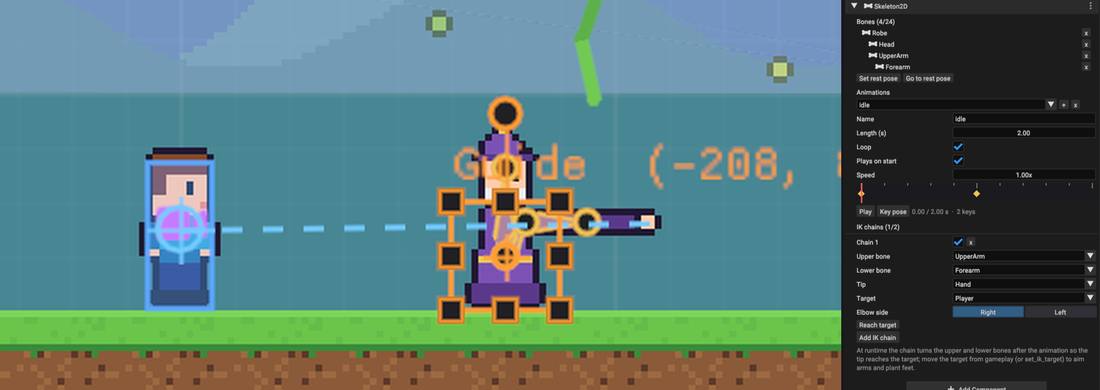
- Draw each part so it turns about its joint: a limb usually starts at its node's origin and extends along +X (untick Centered and set the offset to half its height), while a torso or a head stays centred.
- Attach the parts to each other in the Hierarchy and place them in their rest pose.
- Add a Skeleton2D node (Add 2D Node > Animation), attach the root part to it and press Use the attached parts as bones. The parts' current transforms become the rest pose; Set rest pose captures it again and Go to rest pose returns to it.
- Add an animation with +, give it a length, then pose the bones and press Key pose at each time on the timeline. A key records every bone's rotation and position. Click a key's diamond to go to it, drag the time line to scrub (the bones take the pose, so a key is edited by going to it, posing and keying again), and Play to preview without touching the map's undo history.
Selecting a bone shows the same timeline in its own Inspector, so the usual loop is: select a part, rotate it, Key pose. Between keys the skeleton blends each bone's rotation along the shorter arc and its position in a straight line; a looping animation blends its last key back into the first.
IK chains (up to two) turn an upper and a lower bone after the animation so a Tip — the part at the end of the lower bone, a hand or a foot — reaches a Target node, with the elbow or knee on the Right or Left of the line from the upper joint to the target. Out of reach, the chain points straight at the target. Reach target applies the same solve once in the editor, which is a quick way to pose a limb before keying it. The Platformer 2D template's guide points at the player this way while its idle animation plays.
Gameplay controls a skeleton through Skeleton2DComponent: play(index), stop,
seek, set_speed, take_finished (once after a one-shot animation ends),
reset_pose, set_ik_enabled and set_ik_target. Plays on start starts an
animation with the map. A skeleton holds up to 24 bones, 16 animations of up to 64
keys and two IK chains; keys are cooked as constants (12 bytes per bone per key) and a
Skeleton2D component takes 224 bytes on the console.
Rigid bodies and joints
A RigidBody2D falls, bounces, slides and gets pushed. Its shape is the node's solid
Collider2D (a box or a circle), and it collides with tiles and colliders exactly like a
CharacterBody2D's move_and_slide, so it never tunnels through a wall.
- Mass decides how momentum is shared when bodies run into each other and how slowly a character pushes it. Bounce is the restitution (0 stops dead, 1 bounces back at full speed), Friction slows sliding along what it touches, Damping slows it in the air, and Gravity is its own, in pixels per second squared.
- Pushable bodies are pushed by characters walking into them; heavier ones move slower. Frozen bodies stay put and block like a static body until gameplay unfreezes them (a crate that drops when a switch is hit). Can sleep lets a body that has come to rest stop costing anything until something hits or pulls it.
- Circles roll: the node turns as the ball moves along a floor. Boxes slide and stack but keep their rotation — the solver is axis-aligned, which keeps it exact and stable for the few dozen bodies a scene holds on the console.
Gameplay calls apply_impulse, apply_force (for one step), set_velocity,
set_frozen and wake, and reads the velocity, is_sleeping, is_touching, and
take_contact with get_impact (once per new contact, with its speed: a landing
sound).
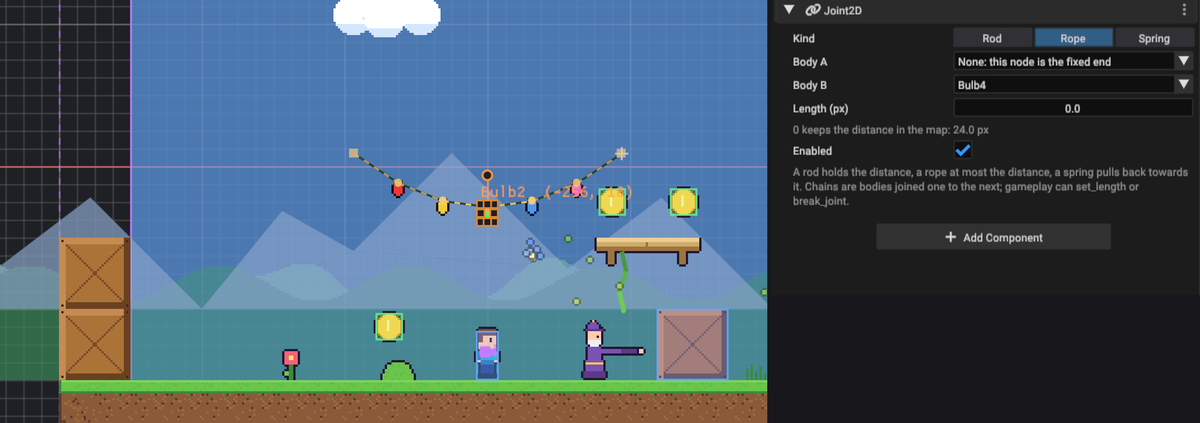
A Joint2D ties Body B, a rigid body, to Body A — another node — or, with no Body A, to the joint node's own position:
- Rod keeps the distance exactly (a pendulum, a lever);
- Rope keeps at most the distance (it goes slack);
- Spring pulls back towards the distance with Stiffness and Damping.
Length 0 keeps the distance the two ends have in the map, so posing the bodies is
how a rope is measured. Chains are bodies each joined to the previous one. The view
draws every joint while colliders are shown: a rod as a line, a rope dashed, a spring
as a zigzag, a fixed end as a square. Gameplay can set_length, disable a joint or
break_joint it for good. Joints do not draw at runtime; a Line2D that follows the
same nodes draws the rope. The Platformer 2D template shows both: a crate to push, and
a garland of light bulbs on rope joints whose cord is such a line.
Navigation
A NavigationRegion2D describes where agents can walk, and a NavigationAgent2D finds a path to a target and walks it.
A region is one of two kinds:
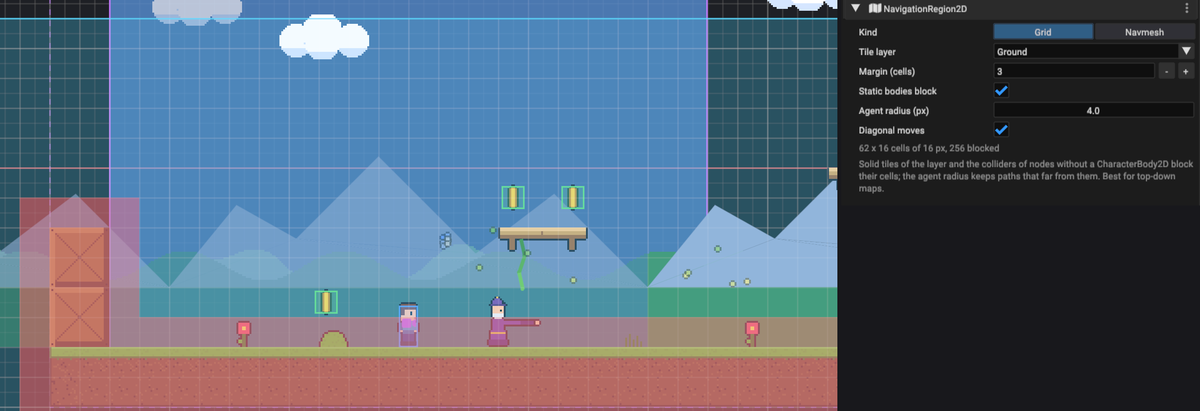
- Grid — a grid of cells, best for top-down maps and anything flying. Pick a Tile layer and the grid follows its cells (plus a Margin of free cells around the painted area): its solid tiles block, one-way tiles do not. Without a tile layer the grid covers an Area from the region node with cells of Cell size. With Static bodies block, the colliders of nodes without a CharacterBody2D (walls, crates) block the cells they cover. Agent radius keeps paths that far from anything blocked; Diagonal moves allows diagonal steps, never squeezing between two blocked corners. The Inspector shows the grid's size and blocked cells, and the view draws them in red.
- Navmesh — an outline, edited in the view like a Polygon2D, that agents walk anywhere inside in straight lines turning at its corners. It suits rooms, roads and caves without obstacles inside; use a grid for those. A region holds up to 64 outline points.
Regions are cooked where they are placed: moving a region at runtime does not move its
navigation, and its cells do not change while the game runs. set_enabled(false) takes
a region out of planning. Agents plan inside the region they stand in, so paths do not
cross from one region into another.
An agent plans in the region under it, then walks: with Moves the node it drives
its node's CharacterBody2D through move_and_slide (set the body to Floating for
top-down movement) or moves the node directly when it has no body. Give it a
Target node to follow — it plans again every Repath every seconds while the
target moves — or call set_target_position from gameplay. Arrive distance is how
close counts as there. When the target cannot be reached, the agent walks to the
closest reachable point; is_target_reachable tells which. Selecting an agent draws
the path it would take now, green when it reaches its target and orange when it stops
short.
Gameplay reads is_navigation_finished, take_arrived (once on arrival),
get_velocity_x/y and get_next_x/y (to steer a body itself with Moves the node
off), and calls set_target_actor, set_target_position, stop and
set_max_speed. The Platformer 2D template's wisp is a navigation agent on a grid
over the Ground layer, following the player round the solid tiles.
On the console a grid costs one bit per cell, and the planner's scratch — 3 bytes per cell of the largest grid plus its open list — is reserved only when a map has one. A path holds up to 32 waypoints, and the whole map plans at most one path per step, so a crowd of agents spreads its planning over several frames.
Pictures and split screen
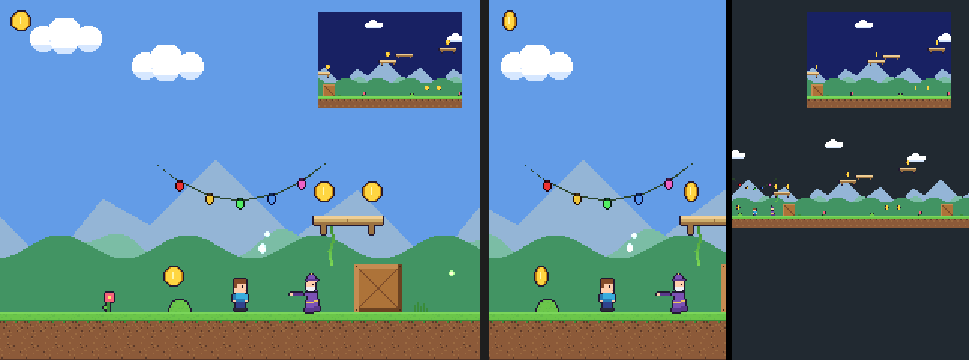
A SubViewport2D draws the world through a Camera — or the active camera — into a picture of its own, and a Sprite2D whose Viewport names it shows that picture instead of a texture. The sprite is an ordinary sprite: place it on a CanvasLayer2D for a minimap in a corner of the screen, in the world for a security monitor, scale it, tint it or blend it. A camera used only for a picture should not be Current.
- Size is the picture in pixels (the width rounds up to 16, at most 256 x 256). It is 15-bit colour in VRAM, 2 bytes a pixel, placed by the texture packer in a page of its own; the Inspector shows its cost.
- Background fills the picture before each redraw, and Redraw every draws it only every few frames: a minimap at every second frame costs half as much.
- Draws can limit the picture to one canvas layer, and Hide layer elsewhere removes that layer from every other view. A sprite showing the picture then draws the whole layer as one image — semi-transparent as a whole, without parts overlapping each other, which is what a canvas group is for.
The picture is drawn every frame on the console before the views that show it, so a sprite always shows the current frame. In the editor a sprite showing a picture is a framed stand-in, and selecting the SubViewport2D draws the area its camera frames.
A SplitScreen2D shows two cameras at once, Side by side or Stacked, with a
Divider of the chosen width and colour. Each half is drawn through its camera,
clipped to the half, over its camera's background; screen canvases (the HUD) are drawn
once over both. Give each player a CharacterBody2D with its own Camera2D and point the
split screen at the two of them. Gameplay can set_enabled and set_side_by_side; a
SubViewport2D can set_camera, set_interval and be switched off, and a sprite can
set_viewport.
Colliders from sprites
Besides Fit to Sprite, a Collider2D can Fit to Visible Pixels: a box around the sprite frame's opaque texels, ignoring its transparent margins.
Canvas layers
Everything draws on a canvas. The world is canvas 0; a CanvasLayer2D puts its node and everything attached to it on another canvas, drawn behind the world (negative layers) or in front of it (positive). In Screen space the attached nodes are placed in screen pixels (0, 0 is the top-left corner) and ignore the camera, which suits HUD sprites; in World space they follow the camera but keep their own drawing order. The editor outlines the screen area. Draw places the layer Over 3D (the default) or Under 3D: see 2D and the 3D world.
A CanvasModulate2D multiplies the colour of everything on its canvas (255 leaves it
unchanged); presets cover day, dusk, night and caves, and set_color animates it.
2D and the 3D world
A map can draw parts of its 2D world under, inside or over its 3D world. Together they make a pre-rendered background: a picture rendered offline from the angle of a fixed 3D camera, 3D characters walking through it, and cut-outs of the picture's foreground (a pillar, a table) hiding them when they walk behind.
Under the 3D world. Set a CanvasLayer2D's Draw to Under 3D. Its nodes draw before every other canvas, whatever its layer number, and while a 3D camera is active also before the 3D world: over the camera's sky colour or gradient, under all 3D geometry. Usually it is a screen canvas holding the background.
Inside the 3D world. A Depth2D places the sprites and tile layers of its node, and of the nodes attached to it, in the 3D world's ordering table at one camera depth. 3D geometry farther than that depth draws first and is hidden by their opaque texels; nearer geometry draws over them. Transparent texels hide nothing, so a cut-out keeps its exact outline.
- Distance is the depth in world units in front of the 3D camera, along its view. With a fixed camera, measure the occluder's distance in the 3D scene.
- Anchor names a 3D actor instead: the depth of its position is used every frame, so the masks keep their depth when the camera moves. An anchor that is gone or is not a 3D actor falls back to the distance.
- Depth bias moves the depth in ordering-table buckets of a quarter unit each; positive is farther. The Inspector shows the resulting bucket.
The ordering table has 512 buckets of a quarter unit, out to 128 units. A 3D triangle is sorted by the average depth of its corners: a character's triangles in the mask's bucket or farther are hidden, nearer ones cover it, and within one bucket the mask wins. A long triangle that crosses the mask's depth switches as a whole, so place a mask at the near face of the object it cuts out, or subdivide large surfaces.
Depth2D applies while a 3D camera is active and no SplitScreen2D is enabled; otherwise its nodes draw on their canvas like any other. Lines, polygons and particles always draw on their canvas. Its warning sign flags a map without a 3D camera, an anchor that is not a 3D actor and a split screen in the map.
To build a scene:
- Render the background from the game camera's position and field of view, at the display resolution (320 x 240 by default).
- Import it in pieces of at most 256 x 256 pixels (a 320 x 240 picture is a 256 x 240 and a 64 x 240 piece; each gets its own palette of up to 255 colours) and place them as Sprite2D nodes on a screen CanvasLayer2D whose Draw is Under 3D.
- Cut each foreground object out of the picture into a texture of its own, transparent around it, place it at the same screen position on a screen canvas and attach it to a node with a Depth2D at the object's depth.
- Press Play and walk a character behind the object.
Gameplay can change all of it from C++, Blueprint or Lua: CanvasLayer2D set_under_3d,
and Depth2D set_enabled, set_distance, set_anchor and set_bias. A game that cuts
between fixed cameras shows the background canvas of the current camera with
set_visible.
In the editor the 2D view draws Under 3D canvases first and Depth2D nodes on their canvas; the Scene view does not draw the 2D world. Play composes the frame on the console and on Native PC. Native PC hides geometry pixel by pixel against the mask's depth where the console sorts whole triangles, so a triangle that crosses a mask's depth can differ; the console is the reference.
Scripting
Every engine 2D component exposes its operations to C++, Blueprint and Lua through
the same reflection, and World 2D gameplay functions add raycast_2d and
overlap_box_2d queries.
class EPOK_CLASS(Blueprintable, Domain=World2D, Owners=World2D, Id="...") Mover : public epok::ActorComponent {
public:
    EPOK_PROPERTY(EditAnywhere) epok::Fixed speed = 96.0;
    void tick(epok::Fixed dt) override {
        auto* body = epok::world2d::find<epok::CharacterBody2DComponent>(get_owner());
        if (!body) return;
        epok::Fixed vx = 0.0;
        if (epok::input.held(epok::Button::Right)) vx += speed;
        if (epok::input.held(epok::Button::Left)) vx -= speed;
        body->set_velocity(vx, body->velocity_y() + epok::Fixed(720.0) * dt);
        body->move_and_slide();
    }
};
local Mover = epok.ActorComponent:extend()
Mover.body = epok.ComponentRef(epok.CharacterBody2DComponent)
Mover.speed = 96.0
function Mover:tick(delta_seconds)
    local vx = 0.0
    if epok.input.held(5, 0) then vx = vx + self.speed end
    if epok.input.held(7, 0) then vx = vx - self.speed end
    self.body:set_velocity(vx, self.body:velocity_y() + 720.0 * delta_seconds)
    self.body:move_and_slide()
end
return Mover
Tile layers are scripted the same way. Breaking the block a body hits from below:
auto* body = epok::world2d::find<epok::CharacterBody2DComponent>(get_owner());
if (body && body->is_on_ceiling() && body->last_collision_is_tile()) {
    auto* map = epok::active_object_registry->resolve<epok::Actor>(body->last_collision_actor());
    if (auto* tiles = epok::world2d::find<epok::TileMapLayerComponent>(map))
        tiles->erase_cell(body->last_tile_x(), body->last_tile_y());
}
The same functions, with the same names, are available to Lua and Blueprints.
In Blueprints, add a ComponentRef variable of the component class, set it in the
Inspector and call the component's functions on it. The Platformer 2D template's
PlatformerController and CoinPickup show the complete pattern in all three
languages.
On the console
- A sprite that is neither rotated, scaled nor flipped, seen through an unrotated camera at zoom 1, is drawn as a hardware rectangle with exact texels; anything else becomes a textured quad. Sprites outside the screen are skipped.
- Lines draw as Gouraud-shaded quads (square caps close their corners), polygons as flat or textured triangles, and particles like sprites; a Parallax2D repeats lines and polygons as well. The 2D particle pool, line segments and polygon triangles are sized into the cooked packet budget.
- Tile layers draw only the cells on screen. Unflipped 8 x 8 and 16 x 16 tiles use the GPU's fixed-size rectangles, its cheapest primitive (16 bytes each); other sizes use sized rectangles, and flipped or rotated tiles and zoomed or rotated cameras use textured quads. A layer cooks only the 16 x 16-cell chunks that hold tiles.
- Under 3D canvases are drawn right after the sky. Depth2D nodes are inserted into the 3D ordering table before any 3D packet; each of their rectangles carries its own drawing page (4 bytes more) with the 3D world's dithering setting. Both share the 2D packet budget.
- The build sizes the 2D service from the content of every map and Blueprint template (colliders, sprites and packet memory), and a project without 2D content compiles none of it.
- 2D games are usually best at 320 x 240: four times fewer pixels to fill than 640 x 480, and the framebuffers leave about 320 KiB more VRAM for textures.
- Play on Native PC draws the same 2D frame as the console (lines take one colour per segment there). It plays 2D audio at the volume it had when it started, without panning.
Current limits: boxes ignore rotation for collision, and rigid boxes slide and stack without tumbling (the solver is axis-aligned; circles roll). A map's sprites, colliders and packets must fit the cooked capacities (extra work is dropped and counted, never overwritten). Tile layers use their node's position but not its rotation or scale, a TileSet uses one atlas texture, tile collision shapes are rectangles (no slopes yet), rotating tiles needs square tiles, and tile layers do not y-sort with sprites. Collision shapes are boxes and circles: there are no polygon colliders, so fit a box to the visible pixels instead.